How to Fix Windows 11 Activation in 5 Steps
Introduction
If you’re staring at a persistent Windows 11 activation error, you’re not alone, and you’re in the right place. Whether it’s a sudden watermark on your desktop or a pop-up saying your license isn’t genuine, these issues can be frustrating and disruptive.
The good news is that most Windows 11 activation problems can be resolved with a few targeted steps. In this guide, you’ll learn how to Fix Windows 11 activation and, if needed, how to Troubleshoot Windows 11 activation errors. Let’s get your system back to fully activated and running smoothly.
Understanding the Root Causes
Windows 11 activation errors can stem from several common issues. Hardware changes, such as replacing your motherboard, can cause Windows to lose its activation status because the system detects a different device. An expired or invalid product key is another frequent culprit, especially if you’ve upgraded from an older version or are using a trial license. Sometimes, the problem is as simple as a corrupted activation file or a temporary glitch in Microsoft’s activation servers. In rare cases, malware or system file corruption can interfere with the activation process. Understanding the root cause is the first step toward a lasting solution.
Preparation & Diagnostics
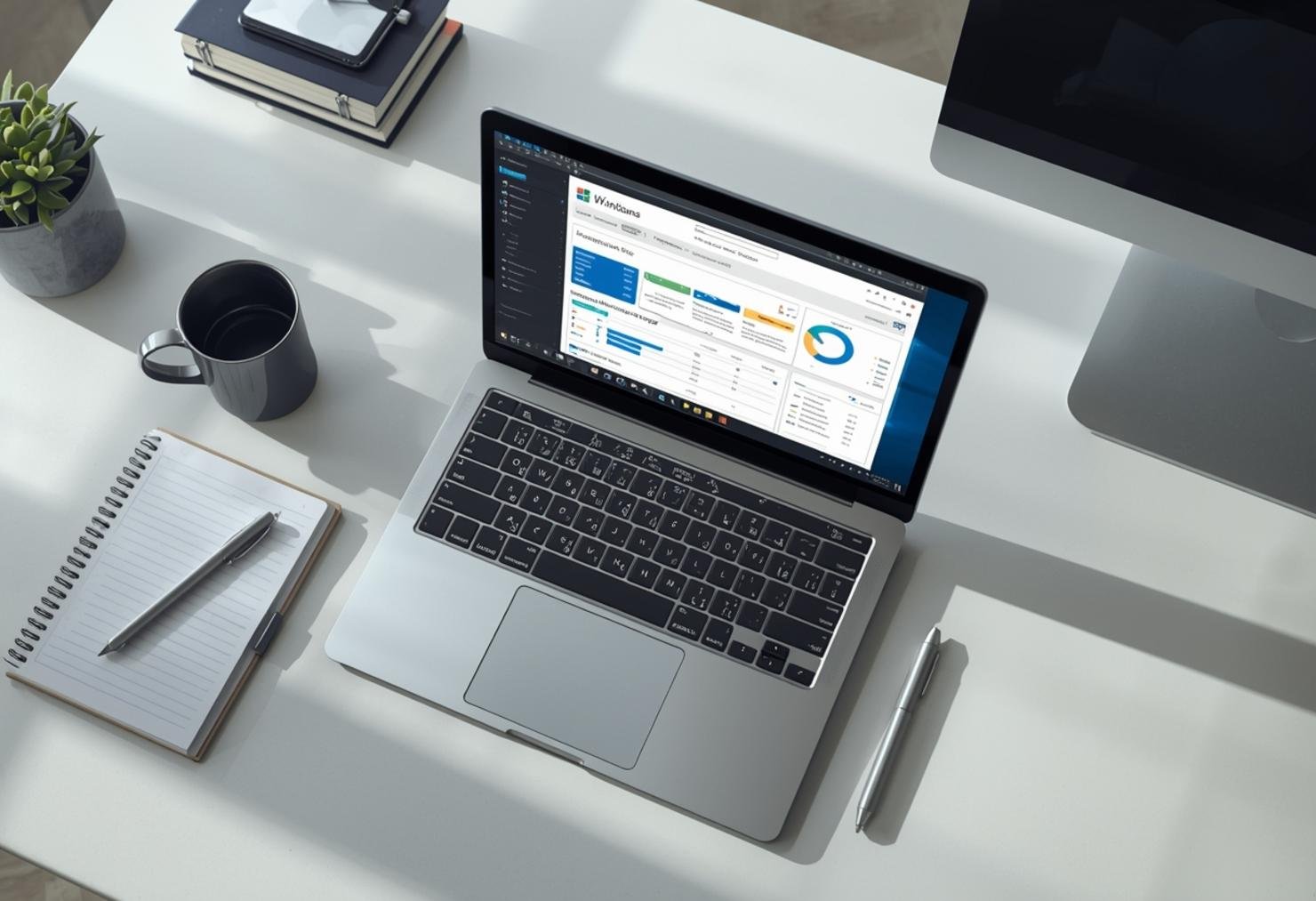
Before diving into fixes, it’s important to gather some key information. First, locate your Windows 11 product key, this is usually found on a sticker on your device or in the confirmation email if you purchased a digital license. Next, check your current activation status by going to Settings > Update & Security > Activation. Make a note of any error codes displayed, as these can help pinpoint the issue. It’s also wise to back up your important files, just in case any troubleshooting steps require system changes. Finally, ensure your PC is connected to the internet, as many activation processes require online verification.
Step-by-Step Troubleshooting Guide
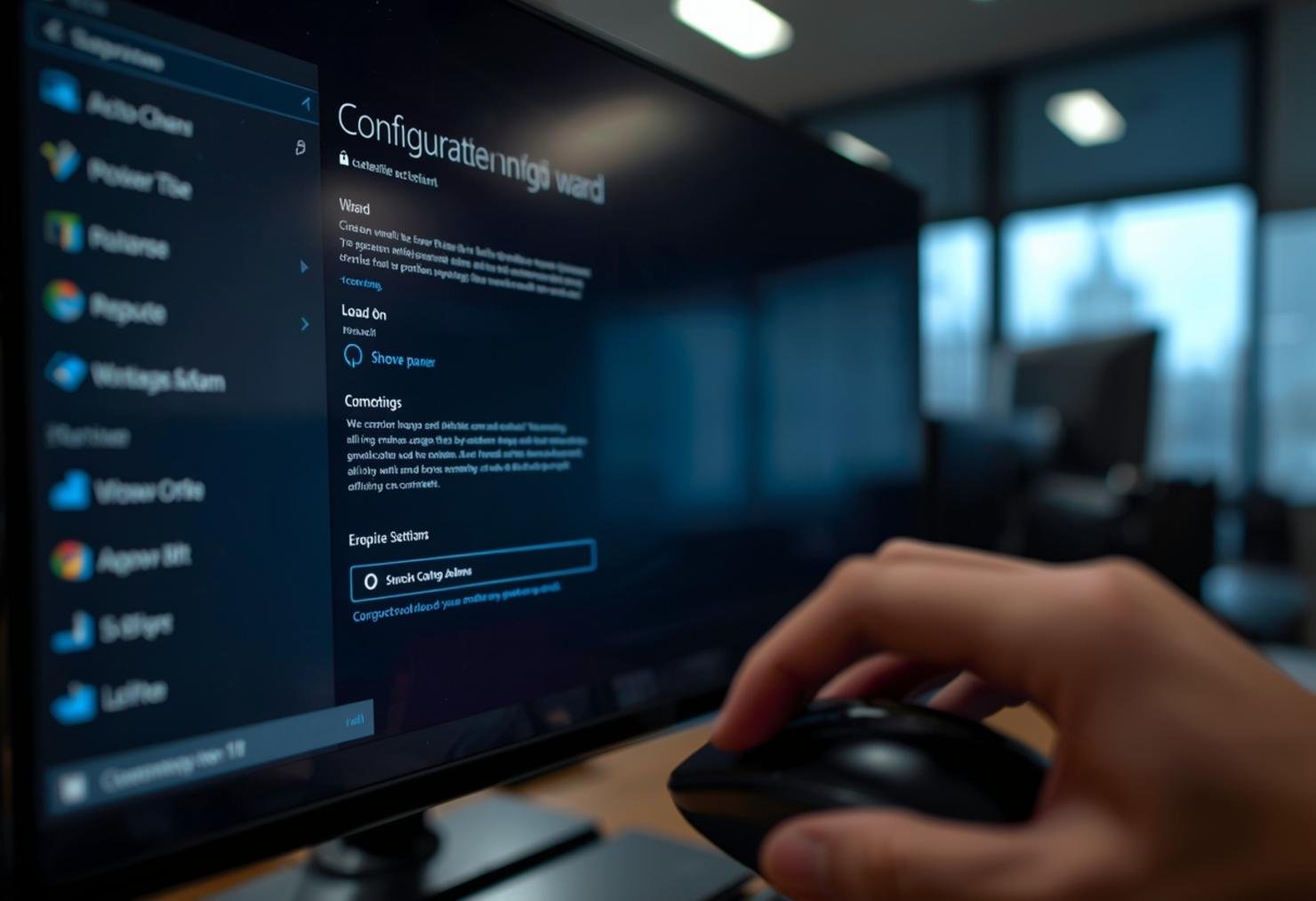
1. Restart Your PC: Sometimes, a simple reboot can resolve temporary activation glitches. Restart your computer and check the activation status again.
2. Run the Activation Troubleshooter: Go to Settings > Update & Security > Troubleshoot. Select “Activation” and follow the prompts. This built-in tool can automatically detect and fix common issues.
3. Enter Your Product Key: If you have a valid product key, select “Change product key” in the Activation settings and enter it. This can reactivate Windows if the key was missing or incorrect.
4. Check Your Internet Connection: Ensure your PC is online. If you’re using a volume license, you may need to connect to your organization’s network.
5. Contact Microsoft Support: If the above steps don’t work, visit the official Microsoft support page to Troubleshoot Windows 11 activation errors. They can help with more complex issues, such as server-side problems or license transfers.
Alternative Solutions (If the First Fix Fails)
If the standard troubleshooting steps don’t resolve your issue, consider these alternatives. First, try activating Windows by phone. Select “Show me other ways to activate” in the Activation settings, then choose “Use the automated phone system.” Follow the instructions to complete activation over the phone. If that doesn’t work, you might need to reset the activation components. Open Command Prompt as an administrator and run the following commands in order:
“`
slmgr /upk
slmgr /cpky
slmgr /rearm
“`
Restart your PC and try activating again. As a last resort, you can perform a system restore to a point before the activation issue began, but be sure to back up your data first.
How to Prevent This Error in the Future
To avoid future activation headaches, always use a genuine, permanent Windows 11 license. Keep your product key in a safe place, and avoid making unnecessary hardware changes. Regularly update your system to ensure you have the latest security patches and activation fixes from Microsoft. If you do upgrade your hardware, use the Microsoft account linked to your digital license to reactivate Windows afterward. For added peace of mind, consider purchasing a new, valid license from a trusted source like Fix Windows 11 activation if your current key is lost or expired.
Conclusion
Windows 11 activation issues can be annoying, but with the right steps, most problems are easy to resolve. Start by understanding the cause, then follow the preparation and troubleshooting steps outlined above. If you still encounter issues, don’t hesitate to use the official Microsoft support page to Troubleshoot Windows 11 activation errors. For a permanent fix, consider investing in a genuine license from a reputable source like Fix Windows 11 activation. This will ensure your system stays activated and secure for the long haul.
FAQs
Q: Why does Windows 11 say my product key is invalid?
A: This can happen if the key has already been used on another device, is counterfeit, or doesn’t match your version of Windows. Try re-entering the key or contact Microsoft support.
Q: Can I transfer my Windows 11 license to a new PC?
A: Yes, if you have a retail (not OEM) license. You’ll need to deactivate it on the old PC and activate it on the new one, either online or by phone.
Q: What should I do if I lost my product key?
A: Check your Microsoft account for digital licenses, or look for the key on your device’s packaging or confirmation email. If you can’t find it, you may need to purchase a new key.
Q: How can I tell if my Windows 11 is genuinely activated?
A: Go to Settings > Update & Security > Activation. If it says “Windows is activated with a digital license,” you’re good to go. If not, you’ll see an error message or watermark.