Microsoft 365 Personal Subscription: What You Get and Where
What Microsoft 365 Personal Actually Includes
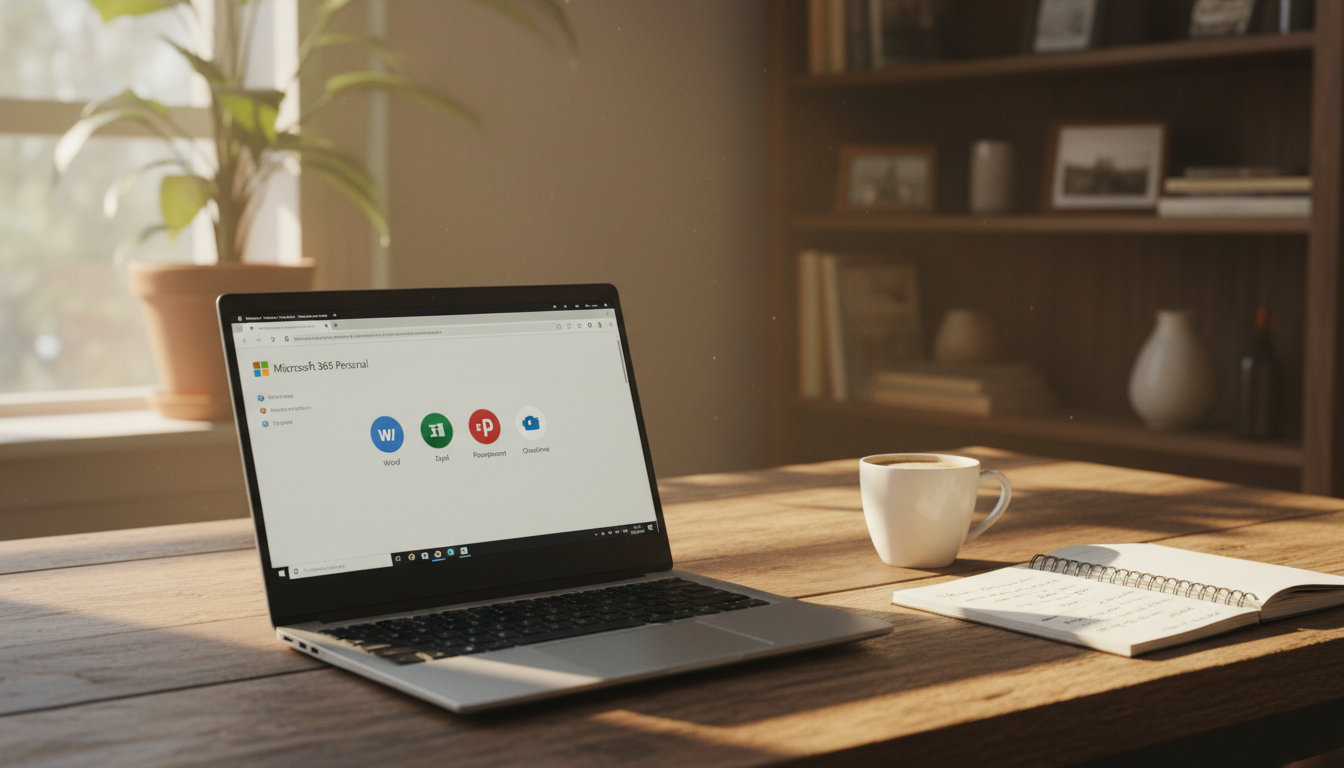
A Microsoft 365 Personal subscription gives you the full desktop versions of Word, Excel, PowerPoint, OneNote, Outlook, and Access (PC only) – installed on up to 5 devices simultaneously across Windows, macOS, iOS, and Android.
That covers one user across all their devices, not one device per license.

Here is exactly what you get, sourced directly from Microsoft’s official product page:
- Desktop apps: Word, Excel, PowerPoint, OneNote, Outlook, Access (Windows only), Publisher (Windows only)
- Device limit: Up to 5 PCs, Macs, tablets, and phones — all signed into the same Microsoft account
- Cloud storage: 1 TB of OneDrive storage included
- Mobile apps: Full Office apps on iOS and Android (editing unlocked, not just viewing)
- Ongoing updates: New features and security patches roll out automatically — you always have the latest version
- Microsoft Copilot: AI features built into the apps, included with the subscription
The subscription runs month-to-month or annually. Stop paying, and the apps drop to read-only mode — you keep your files, but editing locks out until you renew. That is the core trade-off compared to a one-time Office purchase, which Computerworld’s buyer guide covers in detail if you want to compare both routes before deciding.
Microsoft 365 Personal Subscription Cost: UK Pricing Breakdown
The Microsoft 365 personal subscription is available directly from Microsoft in two billing formats. According to the official Microsoft Store product page, you can pay monthly or commit to an annual plan — and the annual route works out cheaper per month. Prices do change, so always verify the current figures on that page before buying.
At the time of writing, the annual plan breaks down to a lower monthly equivalent than the rolling monthly option, which carries a premium for flexibility. That gap is typically a few pounds per month — small on paper, but it adds up over a year.
Microsoft does offer a one-month free trial on the annual plan for new subscribers, though eligibility varies. If you have used a trial before, you will likely be charged from day one.
One thing most buyers overlook: the monthly plan costs noticeably more over 12 months than the annual plan. If you know you will use it all year, the annual option is the straightforward choice.
Want to pay significantly less than either Microsoft rate? Get Microsoft 365 access for less at Dimedigitals — a smarter starting point before committing to full retail pricing.
Subscription vs One-Time License: Real Cost Over 1, 2, and 3 Years
The core question most buyers face: pay annually for a Microsoft 365 personal subscription, or buy Office 2024 Home & Student once and be done with it? The answer depends entirely on how long you plan to use it.
At the time of writing, Microsoft 365 Personal retails at around $69.99/year from the Microsoft Store. Office 2024 Home & Student — the one-time purchase — sits at $149.99. That means the perpetual license pays for itself in roughly 26 months. By year three, you’ve spent $209.97 on the subscription versus $149.99 on the one-time buy. Always verify current pricing before purchasing, as these figures change.
But the subscription isn’t just Word, Excel, and PowerPoint. You get 1TB of OneDrive storage, ongoing feature updates, and Copilot AI tools baked in. As Computerworld notes, the perpetual license freezes at launch — no new features, no AI additions after release.
If you only need basic Office apps and won’t miss the extras, the one-time license wins long-term. If you want the full, evolving toolset, the subscription holds its value. Our Office 2024 Mac review breaks down exactly who the perpetual license actually suits.
Get Microsoft 365 Personal Access for Less →
What Happens to Your Files and OneDrive Data If You Cancel
Cancelling your Microsoft 365 personal subscription does not immediately wipe everything. But the consequences are real, and they arrive in stages.
First, your Office apps drop into reduced-functionality mode. Word, Excel, and PowerPoint become read-only viewers — you can open files but not edit or save them. This kicks in as soon as your paid period ends.
OneDrive is the bigger risk. Microsoft retains your stored files for a limited period after cancellation, but that window is not guaranteed to stay fixed. Check your account dashboard for the exact retention date shown for your account — do not rely on a number you read elsewhere.
Locally saved files are yours to keep. If a document lives on your hard drive and not exclusively in OneDrive, cancellation does not touch it. The safest move before cancelling is to download everything from OneDrive to local storage first.
If you want Office features without a recurring subscription at all, it is worth understanding what Office LTSC 2024 is and how it differs — it is a one-time purchase with no expiry risk.

Get Microsoft 365 Personal Access for Less — 5 Devices, One Account
Do You Actually Need a Full Subscription? Mobile and Web-Only Use Cases
Microsoft offers free versions of Word, Excel, PowerPoint, and other apps on the web and on mobile — no paid plan required. If you only need to view documents, make light edits, or collaborate on shared files, those free tiers cover a lot of ground.
The catch is real, though. The web apps lack advanced formatting tools, macros, and offline access. On mobile, file size limits and feature restrictions kick in quickly. Anyone doing serious document work — long reports, complex spreadsheets, detailed presentations — will hit those walls fast.
A microsoft 365 personal subscription makes sense the moment you need full desktop apps, 1 TB of OneDrive storage, or offline access on your own machine. If you’re managing projects alongside your documents, pairing that with a project plan template for Microsoft Project can extend what you get out of the ecosystem.
If you only browse and edit occasionally on a phone or tablet, stick with the free tier. If you work from a PC or Mac daily, the full subscription pays for itself quickly.
Student, Educator, and Non-Profit Discounts for Microsoft 365 Personal

If you’re a student or educator, check whether you qualify for Microsoft 365 Education before buying anything. Eligible students and teachers at qualifying institutions can access core Office apps — Word, Excel, PowerPoint — completely free. Verify your eligibility directly with Microsoft using your school email address.
Non-profits may also qualify for deeply discounted Microsoft 365 plans through Microsoft’s non-profit programme. Again, confirm eligibility on Microsoft’s site — requirements vary by organisation type and country.
If you don’t qualify for either programme, a microsoft 365 personal subscription at full retail price isn’t your only fallback. Students who need Office on a Mac specifically can get a one-time licence through Office 2024 for Mac — no recurring subscription required, which suits tighter student budgets well.
The short version: check the free education tier first. If you don’t qualify, a one-time licence is often the more practical choice than committing to an annual subscription fee.
How to Activate and Get Started with a Microsoft 365 Personal Subscription
Once you have your account credentials or product key, activation takes under ten minutes. Here’s exactly what to do, based on Microsoft’s official installation guide.
- Go to microsoft365.com and sign in with your Microsoft account (or create one free).
- Select Install apps from your dashboard.
- Run the downloaded installer — it handles everything automatically.
- Once installed, open any Office app and sign in with the same Microsoft account to activate your subscription.
That’s the full process. No product key entry screen, no manual activation codes — the account sign-in is what unlocks everything.
Before you start working, it’s worth spending two minutes on one security step: locking down macro settings. Office macros are a common malware delivery method, and a fresh install leaves you exposed if you open files from unknown sources. Our guide on how to block Office macro malware walks you through the exact settings to change.
After that, your microsoft 365 personal subscription is fully live — Word, Excel, PowerPoint, and 1 TB of OneDrive storage, ready to use across your devices.
Get Microsoft 365 Personal at a Lower Price Through Dimedigitals
If you’ve read this far, you already know what a microsoft 365 personal subscription gives you — the full Office app suite, 1 TB of OneDrive storage, and regular feature updates across your devices. The only question left is where to buy it without overpaying.
Dimedigitals offers the Microsoft Office 365 Account (5 Devices) at a significantly lower price than the standard Microsoft Store rate. You get the same access, the same apps, the same cloud storage — just without paying full retail. Check the product page for the current price.