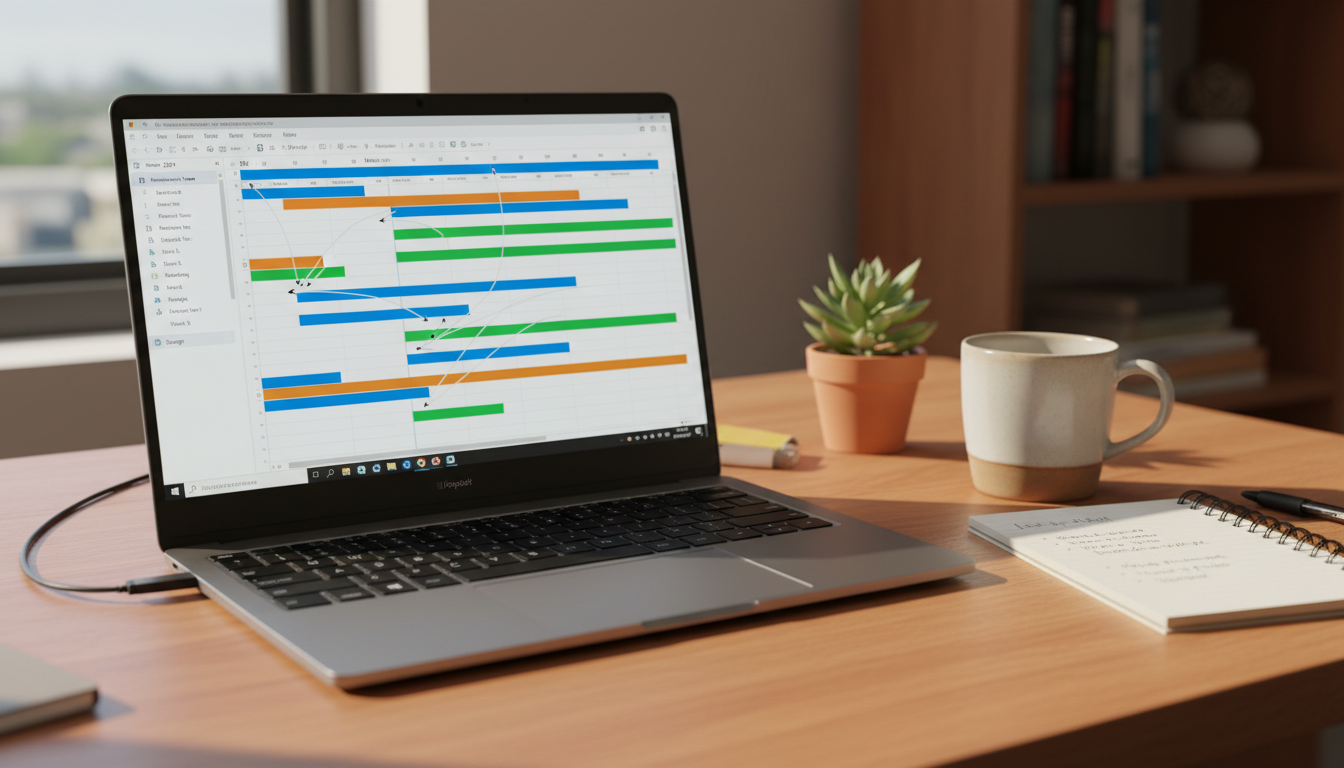
Project Plan Template Microsoft Project: Best Free Downloads
What Makes a Microsoft Project Plan Template Worth Using
A good project plan template for Microsoft Project isn’t just a blank Gantt chart. It comes pre-loaded with the structure you actually need: task columns, milestone markers, dependency links between tasks, and a resource sheet you can populate without building everything from scratch.
Table of Contents
Microsoft’s own project planning templates page shows what a ready-to-use file looks like — phases already broken out, baseline fields set up, and timeline views that activate the moment you open the file. According to ProjectManager’s explainer on how to use Microsoft Project, the core value of the tool is its ability to map task dependencies and critical paths automatically — but only if your file is structured correctly from the start. A template gives you that structure.
If you open a template and see pre-built columns for task name, duration, start, finish, predecessors, and assigned resources — that’s the signal you have something worth using. If it’s just a blank timeline, keep looking.

.mpp vs .mpt vs .xlsx: Which File Format Do You Actually Need
These three extensions cause more confusion than they should. Here is what each one actually does.
.mpp is the native Microsoft Project working file. Every project plan template for Microsoft Project that ships in the standard format uses this extension. Open it, edit it, save it — that is your live project file.
.mpt is a Project template file. It works like a blueprint: open it and MS Project creates a fresh .mpp copy, leaving the original template untouched. Ideal when you reuse the same structure across multiple projects.
.xlsx is an Excel export. Useful for sharing data with stakeholders who do not have Project installed, but you lose Gantt charts, dependencies, and resource assignments in the conversion.
The critical catch: if you try to open an .mpp file without a full MS Project license installed, Windows cannot read it. You will get a file-association error or a prompt to find an app. Microsoft’s Project deployment guide confirms that .mpp files require either Project Standard or Project Professional — Microsoft 365 alone does not cover it.
Bottom line: download .mpt files when you want a reusable master template. Grab .mpp when you are ready to work immediately inside a licensed install.
Microsoft Project Version Compatibility: Which Templates Work Where
Not every project plan template for Microsoft Project opens cleanly across all versions. The file format and feature set you have installed determines what actually loads without errors.
Project Standard 2016 and 2019 both support the classic .mpp template format. Most free templates you find online target this format, so compatibility is rarely an issue. The gap shows up with newer scheduling features — baselines, resource leveling dialogs, and timeline views introduced post-2019 may not render correctly if the template was built in a newer version.
Project Professional 2021 adds enterprise resource pool support and a few reporting views. Templates built for Standard editions open fine, but the reverse is not always true — a Professional-built template dropped into Standard 2016 can strip out resource-linked fields silently.
Project for the Web (via Microsoft 365) is a different product entirely. It does not open .mpp files. Microsoft’s own project planning templates page covers the web-based templates separately — they live in Planner and use a grid/board structure, not Gantt-based scheduling.
If you are on Microsoft 365 and want the full desktop engine, the Microsoft Project deployment guide clarifies which subscription tier includes Project Online Desktop Client versus the lighter web app. Need a faster way to activate a specific version? The Warp Dev Pro Plan is worth a look if you are managing a dev-heavy project environment alongside your MS Project setup.
Inside the Templates: Exact Fields and Structure for 3 Common Project Types

Each project plan template for Microsoft Project ships with a different column set depending on the domain. Here is what you actually get pre-built — before you touch a single cell.
IT / Software projects typically include 20–30 tasks covering requirements gathering, sprint planning, UAT, and deployment. Pre-built columns: Task Name, Duration, Start, Finish, Predecessors, Resource Names, % Complete, and Baseline fields. Dependencies are already wired between phases, so critical-path calculation runs on first open.
Construction projects lean on milestone-heavy structures — site prep, foundation, framing, inspections — with Lag and Lead time columns pre-configured. ProjectManager’s MS Project explainer confirms that Gantt-linked dependencies are standard across these templates, saving hours of manual linking.
Marketing campaigns run shorter task lists (15–25 tasks) focused on deliverable handoffs: brief approval, asset creation, review cycles, launch. The key pre-built field here is the Deadline column, separate from Finish, which lets you flag client-facing dates without breaking the schedule logic.
If you are also building decks or reports around your plan, a tool like Gamma App Pro pairs well — it turns structured project data into presentation-ready slides fast.
Which Project Plan Template for Microsoft Project Fits Your Situation
The right project plan template for Microsoft Project depends on three things: your team size, how much schedule detail you actually need, and whether you’re tracking dependencies or just milestones.
Solo freelancers and consultants — use a simple task-list template with a single Gantt view. No resource leveling needed. You want dates, deliverables, and done.
Small teams (2–10 people) — pick a template with a resource sheet already built in. ProjectManager’s Microsoft Project explainer confirms that resource assignment is where small teams lose the most time when starting from scratch.
Mid-size teams running phased projects — construction, IT rollouts, product launches — need a template with task dependencies and baseline tracking baked in. Microsoft’s template library includes phase-structured options built for exactly this.
Enterprise or cross-department projects — go for a template with a WBS (work breakdown structure) and budget columns. Complexity here isn’t optional; you need the structure before the first stakeholder meeting.
If you’re unsure, default to a phased template. It’s easier to delete phases you don’t need than to rebuild structure mid-project.
How to Open, Customize, and Save a Microsoft Project Template Without Breaking It
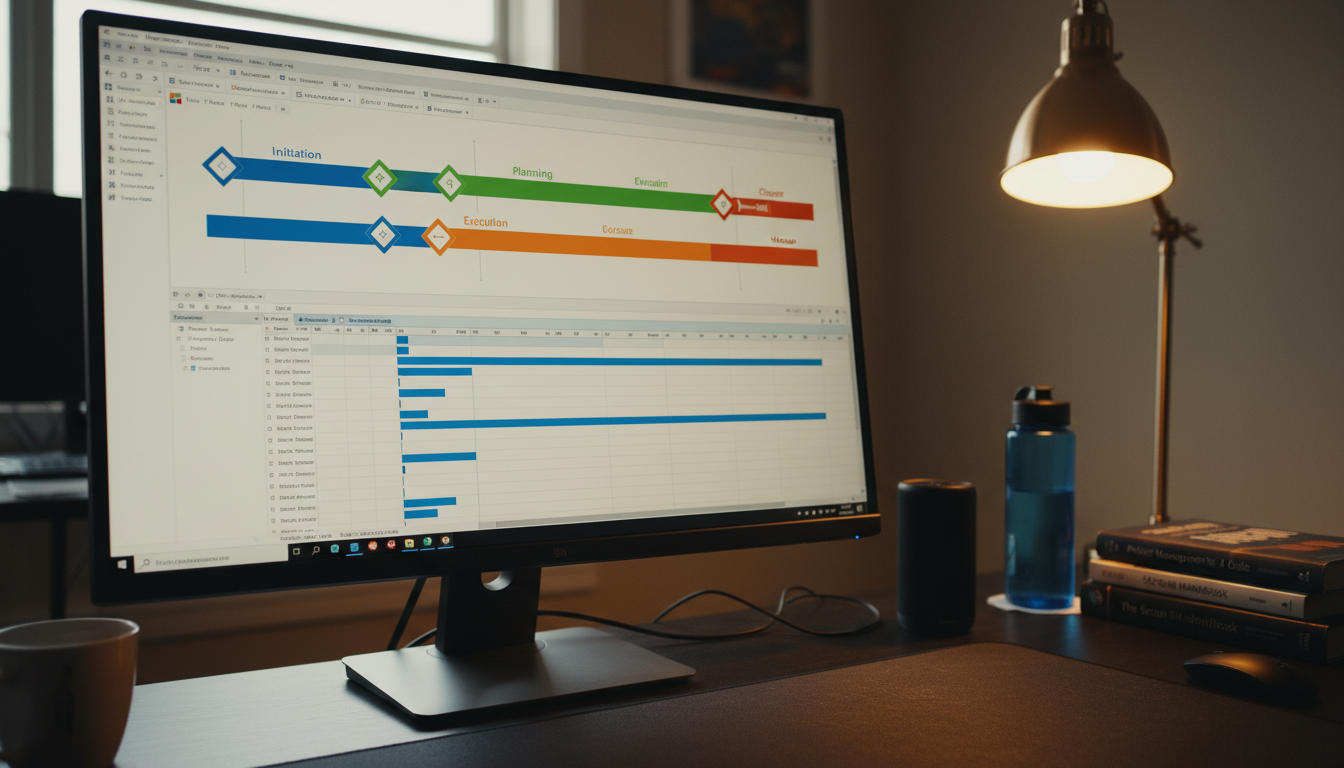
Open Microsoft Project, go to File → New, then choose Personal to load any .mpp template you’ve downloaded. Double-click it — it opens as a new unsaved file, so your original stays untouched.
Start by renaming the placeholder tasks to match your actual deliverables. Click any task name and type directly. Adjust durations by editing the Duration column — MS Project recalculates the Gantt automatically. Per the Microsoft Project deployment guide, keeping your Project version current avoids formula and dependency bugs when editing inherited templates.
Assign resources by clicking the Resource Names column on each task. To add a custom column, right-click any column header and select Insert Column. The ProjectManager how-to-use explainer recommends setting task dependencies before assigning resources — it prevents scheduling conflicts that are painful to untangle later.
Save your customized project plan template as a new .mpp file immediately: File → Save As, give it a project-specific name, and never overwrite the original template. That one habit protects every future project.
FAQ: Microsoft Project Templates, File Formats, and Compatibility
What file format do Microsoft Project templates use?
Templates use the .mpt format. Saved project files use .mpp. If you download a project plan template for Microsoft Project and it opens as a blank file, check that your version of MS Project matches the template’s format version.
Do I need a paid license to use templates?
Yes. Templates require a working installation of Microsoft Project. For current licensing options and pricing, check Microsoft’s official Project templates page.
Are templates compatible across Project versions?
Older .mpt files generally open in newer versions, but not always in reverse. A template built in Project 2019 may not open cleanly in Project 2016. The Microsoft Project deployment guide covers version compatibility in detail.
What if I don’t have MS Project installed?
You cannot open .mpp or .mpt files natively without the software. Free alternatives like ProjectLibre can open .mpp files with some formatting loss.
Can I edit templates in Excel or Word?
Not directly. MS Project files aren’t Excel-compatible. You’d need to export data from within Project first.
Where does Microsoft explain how Project works?
The ProjectManager guide on how to use Microsoft Project is a solid starting point for new users.
Work Faster Inside Microsoft Project With the Right Productivity Tools
You now have the templates. The harder part is keeping up with all the writing that comes with project management — status updates, scope notes, task descriptions, meeting summaries. That’s where a lot of time quietly disappears.
Wispr Flow Pro is a voice-dictation tool that lets you speak your notes and have them typed out accurately, hands-free. It works across apps, so whether you’re filling in a project plan template Microsoft Project style or drafting a quick update in Word or email, you’re not slowed down by typing. For project managers who document constantly, it’s a straightforward time-saver.
Dimedigitals carries a 1-year Wispr Flow Pro license at a fraction of the standard price. If you’re already investing in better templates and tools, this is a natural next step.