Quick Fix: Remove Activate Windows Watermark in 2025
Introduction
Remove activate Windows watermark. It’s frustrating to see that persistent reminder on your desktop, constantly reminding you that your copy of Windows isn’t activated. This watermark can be distracting and make your system feel incomplete. Fortunately, there are several ways to Remove activate Windows watermark and restore your desktop to a clean, professional look.
Before diving into solutions, it’s important to understand that this issue often stems from an unactivated or improperly licensed copy of Windows. For a permanent fix, consider purchasing a genuine Windows license from trusted retailers like Dime Digital.
Understanding the Root Causes
The watermark appears when Windows cannot verify your license. This can happen for several reasons, such as a missing or invalid product key, hardware changes that invalidate your current activation, or using a counterfeit version of Windows. Sometimes, the activation server may also be temporarily unavailable, causing the system to display the watermark even if your license is valid. Understanding these triggers is the first step to Remove activate Windows watermark. For more detailed information on activation issues, visit Microsoft’s official support page. Common causes include:
- Missing or invalid product key
- Hardware changes (e.g., motherboard replacement)
- Using a counterfeit or improperly licensed version
- Temporary activation server issues
Preparation & Diagnostics

Before attempting to Remove activate Windows watermark, it’s wise to perform a few checks. First, ensure your internet connection is stable, as Windows needs to communicate with Microsoft’s servers for activation. Next, verify that your product key is valid and hasn’t been used on more devices than allowed. If you recently upgraded your hardware, especially your motherboard, you may need to reactivate Windows. It’s also a good idea to back up any important files, just in case something goes wrong during the troubleshooting process. Lastly, make sure your Windows is up to date, as updates can sometimes resolve activation glitches.
Step-by-Step Troubleshooting Guide
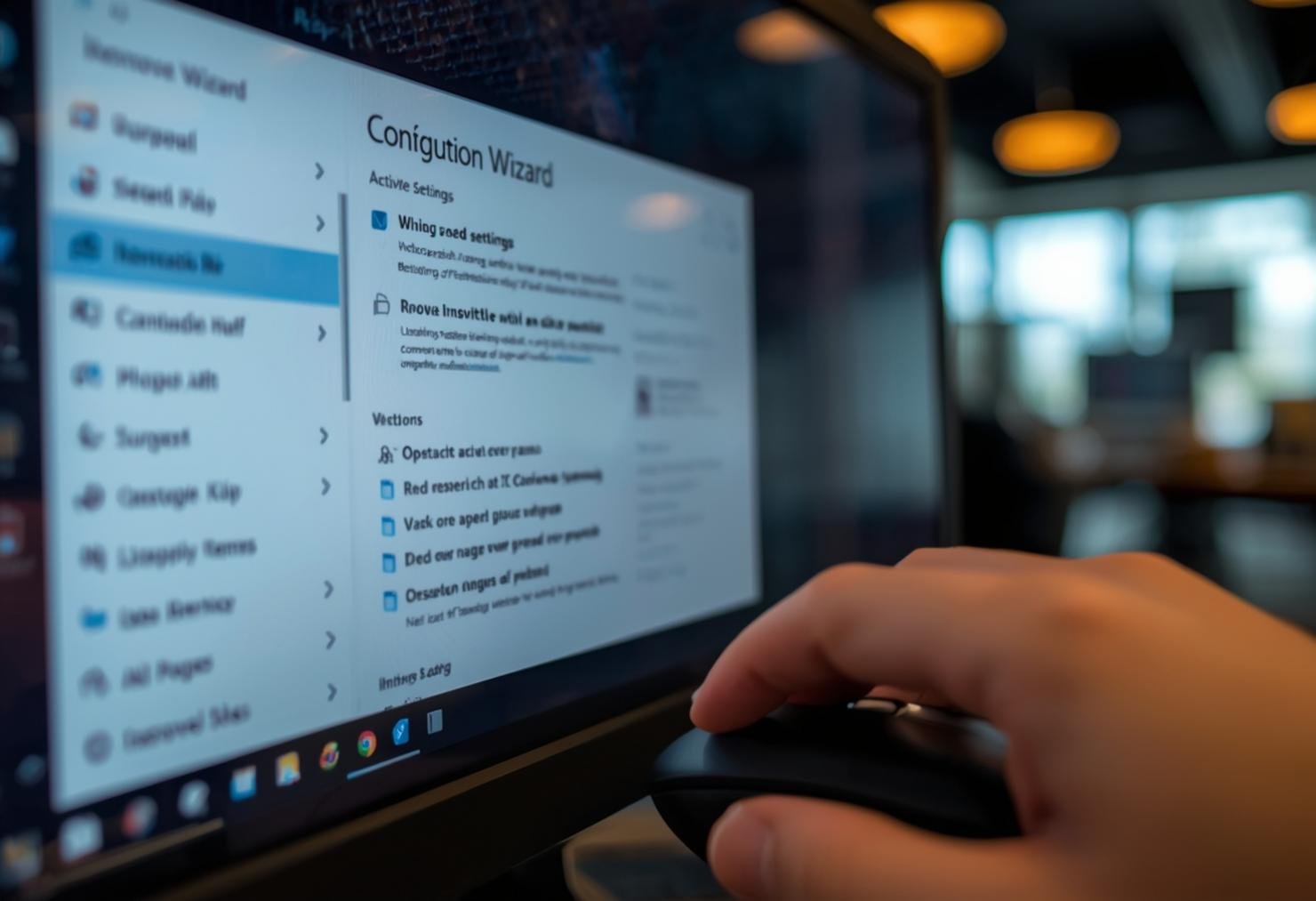
Follow these steps carefully to Remove activate Windows watermark. First, open the Settings app by pressing Windows + I, then navigate to Update & Security > Activation. If Windows is not activated, click on “Change product key” and enter your valid product key. If you don’t have one, you can purchase it from authorized sellers. If activation fails, try running the Activation Troubleshooter, which can often resolve common issues. For more complex problems, you may need to contact Microsoft Support directly. For detailed troubleshooting steps, refer to Microsoft’s official guide.
- Open Settings and go to Update & Security > Activation.
- Click “Change product key” and enter your valid Windows product key.
- If activation fails, run the Activation Troubleshooter.
- Contact Microsoft Support if the issue persists.
Alternative Solutions (If the First Fix Fails)
If the standard activation process doesn’t Remove activate Windows watermark, there are alternative methods to try. One option is to use the Command Prompt to force a reactivation. Open Command Prompt as an administrator and type `slmgr /rearm`, then press Enter. This command resets the activation timer, which may help in some cases. Another approach is to check your BIOS for an embedded product key, especially if you bought your PC pre-installed with Windows. If none of these methods work, consider performing a clean installation of Windows using a genuine installation media. Always ensure you have your product key ready before proceeding with a clean install.
How to Prevent This Error in the Future
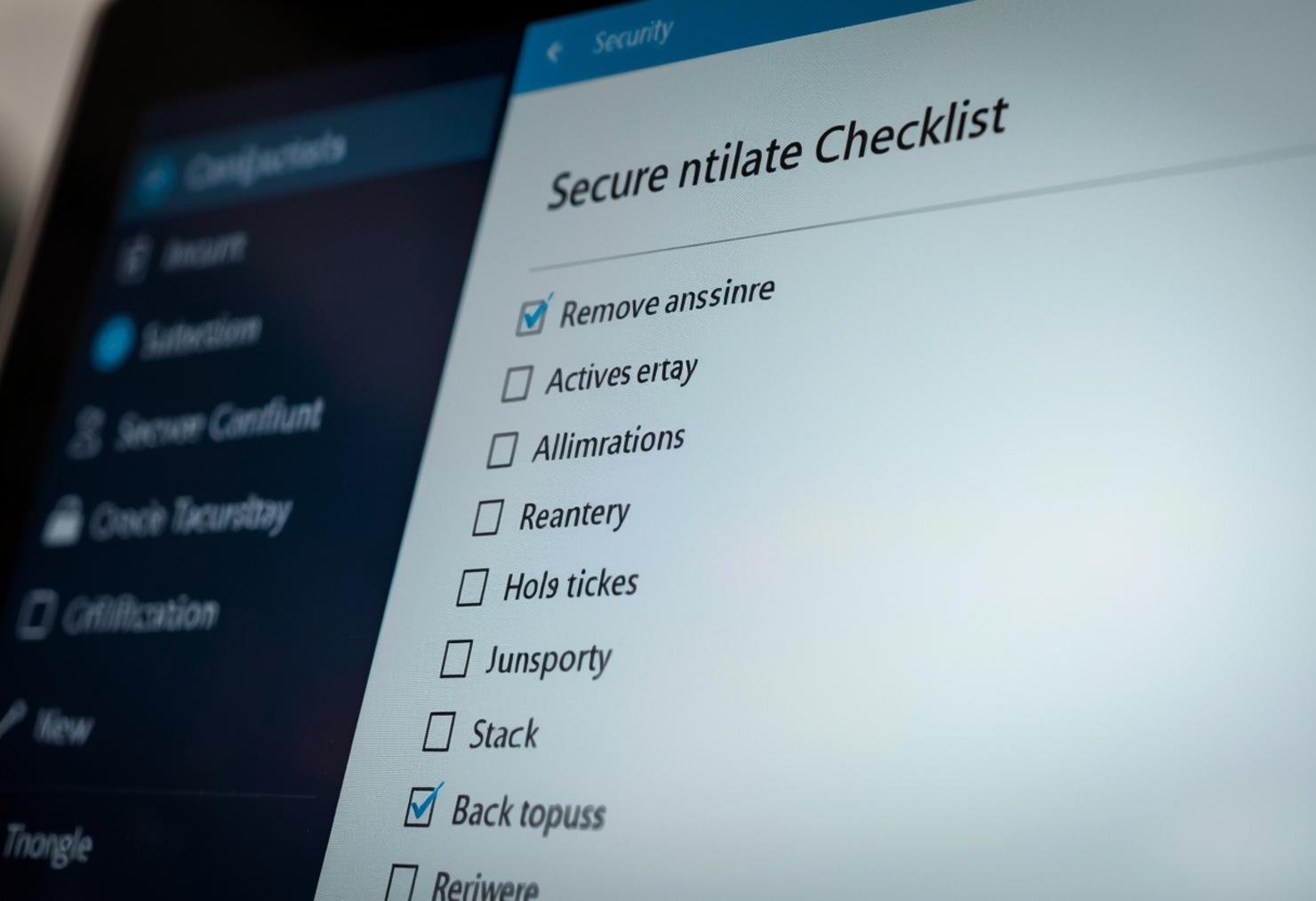
Preventing the watermark from reappearing is just as important as removing it. The best way to avoid activation issues is to use a genuine, licensed copy of Windows. Always purchase your Windows license from reputable sources to ensure you receive a valid product key. Keep your system updated and avoid making unauthorized changes to your hardware, as this can trigger reactivation requirements. If you do upgrade your hardware, be prepared to reactivate Windows using your original product key. Regularly backing up your system can also help you recover quickly if activation issues arise after major changes.
Conclusion
Removing the activate Windows watermark is essential for a clean and professional desktop experience. By following the steps outlined above, you can troubleshoot and resolve most activation issues. Remember, the most reliable way to avoid this problem in the future is to use a genuine Windows license. If you need a new or replacement key, consider purchasing from trusted online retailers. With the right approach, you can enjoy a watermark-free desktop and a fully activated Windows experience.
Frequently Asked Questions
Is it safe to use third-party tools to remove the Windows watermark?
Using third-party tools to Remove activate Windows watermark is not recommended. These tools can sometimes contain malware or cause system instability. It’s always safer to use official Microsoft methods or purchase a genuine license from authorized sellers.
Can I transfer my Windows license to a new computer?
Retail (store-bought) Windows licenses can usually be transferred to a new computer, but OEM licenses (pre-installed on a new PC) are tied to the original hardware. To transfer your license, you’ll need to deactivate it on the old device and activate it on the new one using your product key. For more details, see Microsoft’s activation support page.
How long does it take to activate Windows after entering the product key?
Activation is usually instant if your internet connection is stable and the product key is valid. In some cases, it may take a few minutes for the system to verify the key with Microsoft’s servers. If activation fails, try again later or contact support.
What should I do if I lose my Windows product key?
If you lose your product key, check your email for the purchase confirmation or look for it on the sticker on your PC (for OEM versions). If you can’t find it, you may need to purchase a new key from authorized retailers. Always keep your product key in a safe place for future use.