How to Fix Remote Desktop Licensing in 3 Steps
Introduction
Fix remote desktop licensing is a common frustration for IT professionals and businesses relying on remote desktop services. When this error strikes, users are often locked out of critical systems, halting productivity and causing unnecessary stress.
Fortunately, resolving these licensing issues is achievable with the right steps and tools. To ensure smooth operations, it’s crucial to have valid Windows Server RDS User CALs installed and properly configured.
Understanding the Root Causes
Fix remote desktop licensing problems typically stem from a few core issues. The most frequent culprit is missing or expired Remote Desktop Services (RDS) Client Access Licenses (CALs). Another common cause is a misconfigured or unreachable license server, which prevents clients from obtaining necessary licenses. Additionally, network connectivity problems, outdated server roles, or corrupted licensing databases can trigger these errors. For a deeper technical dive, Microsoft’s official guide on how to troubleshoot remote desktop licensing errors offers comprehensive insights.
Preparation & Diagnostics

Before attempting to fix remote desktop licensing, it’s important to gather some key information. First, verify that your Windows Server is running a supported version for RDS. Check the Event Viewer for licensing-related errors, as these logs can pinpoint the exact issue. Ensure your license server is online and reachable from client machines. Also, confirm that you have valid Windows Server RDS User CALs installed and that your license agreement is up to date.
Step-by-Step Troubleshooting Guide
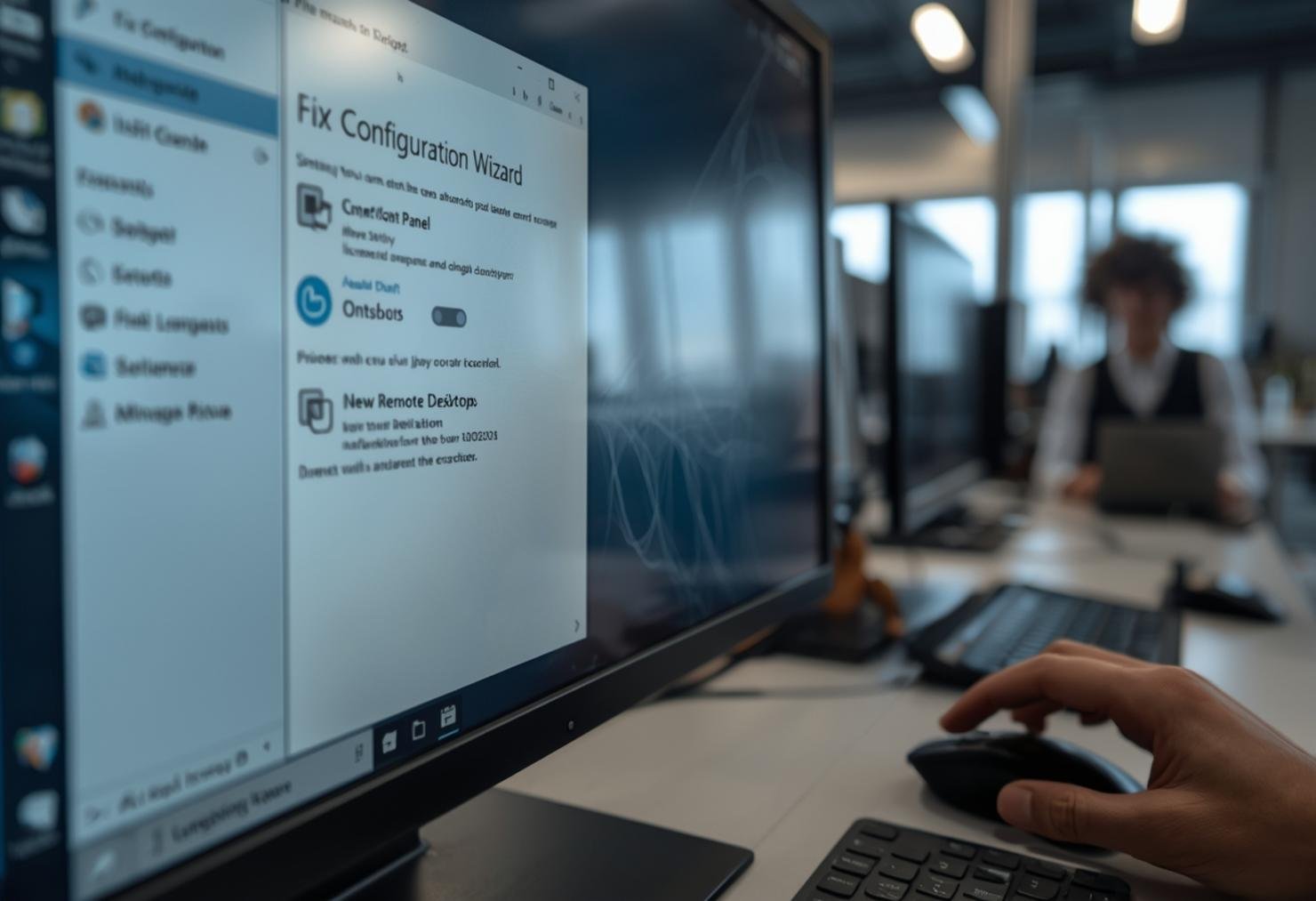
Follow these steps carefully to fix remote desktop licensing issues:
- Open Server Manager and navigate to Remote Desktop Services. Check the licensing status and ensure the license server is active.
- Verify that your RDS CALs are installed. If missing, install valid Windows Server RDS User CALs from a trusted source.
- Restart the Remote Desktop Licensing service via Services.msc to refresh the licensing state.
- If errors persist, use the Remote Desktop Licensing Manager tool to diagnose and repair licensing issues.
For more detailed guidance, refer to Microsoft’s instructions on how to troubleshoot remote desktop licensing errors.
Alternative Solutions (If the First Fix Fails)
If the initial steps do not resolve the issue, try these alternative solutions:
- Reset the licensing grace period by running the command `Change /l` in an elevated command prompt.
- Reinstall the Remote Desktop Licensing role, ensuring you follow the correct configuration steps.
- Check your firewall settings to confirm that the license server is not being blocked.
- Contact Microsoft support or consult with a certified IT professional if the problem persists.
How to Prevent This Error in the Future
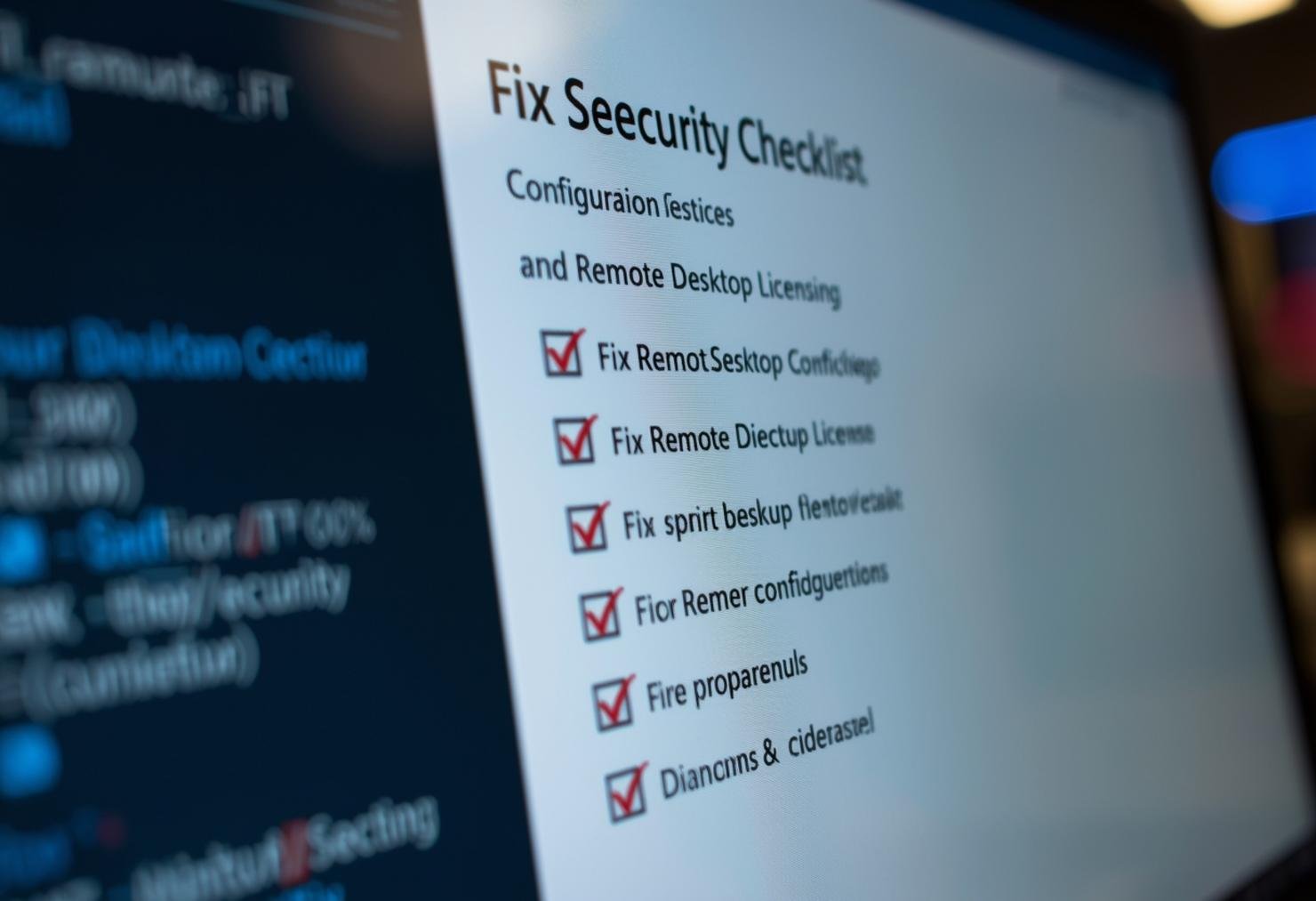
Preventing remote desktop licensing errors starts with proactive management. Always keep your Windows Server updated with the latest patches and service packs. Regularly audit your RDS CALs to ensure you have enough licenses for all users and devices. Maintain a reliable license server and monitor its health with automated alerts. Most importantly, always use genuine software—invest in valid Windows Server RDS User CALs to avoid compatibility and compliance issues.
Conclusion
Fix remote desktop licensing issues can be resolved by following a structured approach: verify your license server, ensure CALs are installed, and use the right diagnostic tools. Staying proactive with system updates and using genuine licenses, such as Windows Server RDS User CALs, will keep your remote desktop services running smoothly and securely.
Frequently Asked Questions
What causes remote desktop licensing errors?
Remote desktop licensing errors are usually caused by missing or expired RDS CALs, misconfigured license servers, or network connectivity issues. Using genuine software and keeping your server updated helps prevent these problems.
How do I check if my RDS CALs are installed?
You can check your RDS CALs by opening Server Manager, navigating to Remote Desktop Services, and reviewing the licensing status. You can also use the Remote Desktop Licensing Manager tool for detailed information.
Where can I find official help to troubleshoot remote desktop licensing errors?
For official guidance, refer to Microsoft’s guide on how to troubleshoot remote desktop licensing errors.
Do I need to restart my server after installing new CALs?
In most cases, you do not need to restart the entire server. However, restarting the Remote Desktop Licensing service is recommended to apply the changes.