How to Extend or Reactivate Windows Server Evaluation Expired in 2026
Introduction
Windows Server evaluation expired. This frustrating error can bring your critical server operations to a halt, causing downtime and productivity loss. Many IT administrators face this issue when they’ve been running a trial version of Windows Server and failed to activate it with a genuine license before the evaluation period ended.
If you’re experiencing this problem, don’t worry—you’re not alone, and there are straightforward solutions available. Before we dive into the fixes, it’s worth noting that you can avoid this situation entirely by obtaining a legitimate license from trusted sources like Windows Server Standard or Datacenter Key, which ensures continuous operation without interruptions.
Understanding the Root Causes
The Windows Server evaluation expired error typically occurs when the 180-day trial period for Windows Server concludes without proper activation. Several factors can trigger this issue, including administrative oversight, system clock changes, or failed activation attempts. Sometimes, organizations intentionally run evaluation versions for testing but forget to convert them to full licenses before expiration. Other times, network connectivity issues prevent the server from contacting Microsoft’s activation servers, causing the evaluation period to expire prematurely. Understanding these root causes is essential for implementing the right solution. For detailed information about supported upgrade paths and activation methods, you can refer to the Windows Server evaluation extension process documentation.
Preparation & Diagnostics

Before attempting any fixes for the Windows Server evaluation expired error, it’s crucial to perform proper diagnostics and preparation. Start by documenting your current server configuration, including installed roles, features, and any custom settings. Check the event viewer for related error messages that might provide additional context about the activation failure. Ensure you have administrative access to the server and that you’re logged in with an account that has sufficient privileges to make system changes. It’s also wise to create a system restore point before proceeding with any activation procedures, as this provides a safety net if something goes wrong during the process. Additionally, verify your network connectivity and ensure that any firewall rules or proxy settings aren’t blocking communication with Microsoft’s activation servers.
Step-by-Step Troubleshooting Guide
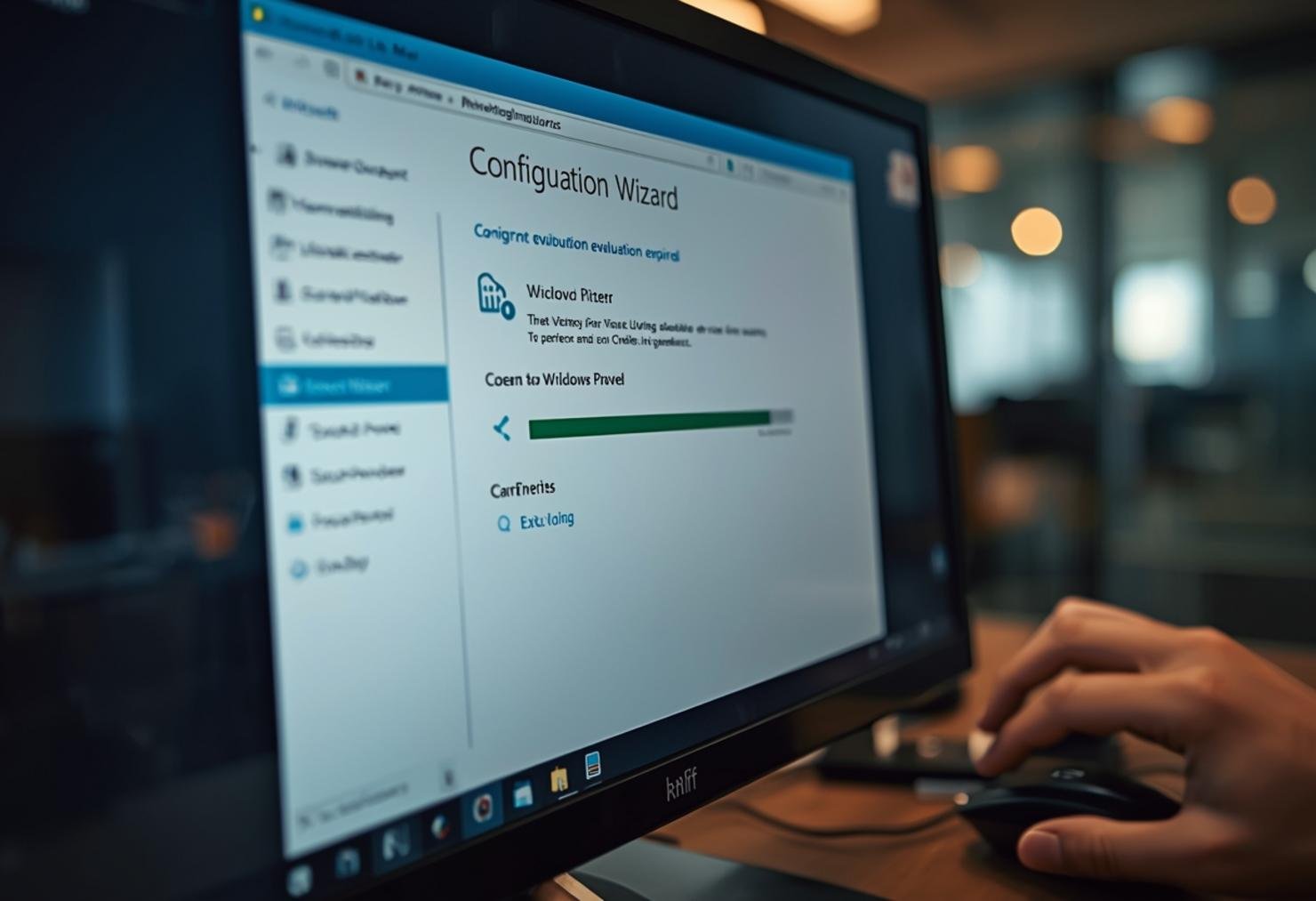
Follow these steps to resolve the Windows Server evaluation expired error systematically. First, open an elevated command prompt by right-clicking the Start menu and selecting “Command Prompt (Admin)” or “Windows PowerShell (Admin).”
- Type
slmgr /dlvand press Enter to display detailed license information. This command shows your current license status, including the evaluation expiration date. - If the evaluation period has indeed expired, type
slmgr /ipk [Your-Product-Key]and press Enter, replacing [Your-Product-Key] with a valid Windows Server product key. This installs the new license. - After installing the product key, type
slmgr /atoand press Enter to attempt activation immediately. - Wait for the activation process to complete. If successful, you’ll see a confirmation message indicating that Windows has been activated.
- Finally, type
slmgr /xprand press Enter to verify that the machine is permanently activated.
If these steps don’t resolve the issue, you may need to consider alternative solutions or contact Microsoft support for assistance. The Windows Server evaluation extension process provides additional guidance for complex activation scenarios.
Alternative Solutions (If the First Fix Fails)
If the standard activation process doesn’t resolve the Windows Server evaluation expired error, try these alternative approaches. First, attempt to reset the activation status by opening an elevated command prompt and typing slmgr /upk to uninstall the current product key, then slmgr /cpky to clear the product key from the registry. After this, restart the server and repeat the activation steps from the previous section. Another option is to use the Volume Activation Management Tool (VAMT) if you’re managing multiple servers in an enterprise environment. VAMT provides a centralized way to manage activation across your infrastructure. You can also try running the System File Checker by typing sfc /scannow in an elevated command prompt to repair any corrupted system files that might be interfering with activation. In some cases, temporarily disabling antivirus software or firewall rules can resolve activation issues caused by overzealous security software blocking communication with Microsoft servers.
How to Prevent This Error in the Future
Preventing the Windows Server evaluation expired error requires proactive management and planning. The most effective prevention strategy is to obtain and install a genuine Windows Server license before the evaluation period expires. Consider setting calendar reminders 30, 60, and 90 days into your evaluation period to ensure you have ample time to procure and activate a full license. Implementing a proper license management system helps track expiration dates and ensures compliance across your infrastructure. Regular monitoring of server activation status through automated scripts or monitoring tools can alert you before the evaluation period ends. When deploying new servers, always start with a full license rather than an evaluation version if the server will be used in production. For organizations that need flexibility, consider volume licensing agreements that provide better management tools and compliance features. Remember that using genuine software from reputable sources like Windows Server Standard or Datacenter Key not only prevents activation issues but also ensures you receive important security updates and support from Microsoft.
Conclusion
The Windows Server evaluation expired error can be disruptive, but with the right approach, it’s entirely solvable. By following the troubleshooting steps outlined in this guide, you can restore your server’s functionality and prevent future occurrences. The key is to act promptly when you receive activation warnings and to maintain proper license management practices. Whether you choose to extend your evaluation period, convert to a full license, or implement new servers with genuine keys from the start, staying proactive about activation ensures uninterrupted service for your users and applications. For reliable licensing solutions that prevent these issues, consider exploring options like Windows Server Standard or Datacenter Key from trusted providers.
Frequently Asked Questions
Can I extend my Windows Server evaluation period beyond 180 days?
Yes, Microsoft allows you to extend the evaluation period up to five times, providing a total of 900 days of evaluation time. To extend, open an elevated command prompt and type slmgr /rearm, then restart your server. However, each rearm reduces the total number of available extensions, so use this option judiciously. The Windows Server evaluation extension process provides detailed information about the limitations and requirements for extensions.
What happens if I continue using Windows Server after the evaluation expires?
After the evaluation period expires, Windows Server will enter a reduced functionality mode. While the server may continue running, you’ll lose access to critical features, and the system will display persistent activation warnings. Some services may stop functioning properly, and you won’t receive security updates, which poses significant security risks. Additionally, using expired software violates Microsoft’s licensing terms and could result in compliance issues during audits.
How can I check if my Windows Server is properly activated?
To verify your Windows Server activation status, open an elevated command prompt and type slmgr /xpr. This command displays whether your system is permanently activated or if there’s an expiration date. You can also check activation status through Server Manager by navigating to Local Server and looking at the activation section. Additionally, the slmgr /dlv command provides detailed information about your license type, partial product key, and activation status.
Is it possible to convert an evaluation version to a full version without reinstalling?
Yes, you can convert an evaluation version to a full version without reinstalling the operating system. The process involves entering a valid product key using the slmgr /ipk [Your-Product-Key] command followed by slmgr /ato to activate. This in-place upgrade preserves all your settings, applications, and data while converting the license type. However, ensure you have a backup before proceeding, and verify that the product key you’re using matches the edition of Windows Server you’re running.